
Knowing how to claim your business in ChatGPT comes down to eight screens in one dashboard. OpenAI opened Business Hub on 10 November 2026, and it is now live and open to claim for eligible businesses. This guide follows our own claim of the Digital Marketing Cube profile and marks the parts we took from OpenAI’s help article instead. OpenAI is still adding features, so a screen may look different when you open it.
Prefer to watch? Video walkthrough
What claiming a business in ChatGPT means
Claiming a business in ChatGPT means proving to OpenAI that you own the business, or act for it, so you can manage its profile.
Business Hub is OpenAI’s dashboard for Businesses in ChatGPT. An approved owner updates the profile there, reads Insights and, if eligible, sets up a Business Agent. A blue check shows the profile has been claimed.
The profile holds plain details: category, description, contact information, photos, and delivery and returns lines. ChatGPT may use it when someone asks about your business. OpenAI says ChatGPT may show information about a business whether or not it has an agent, so a profile can exist without your input. Claiming lets you correct and extend it. You can start from the ‘Claim your business’ button on OpenAI’s Businesses in ChatGPT page (linked under Reference below) or open Business Hub directly.
What claiming gives you, and what it does not
Claiming gives you control of your profile details, a blue check and access to Insights. OpenAI states that ChatGPT keeps making its own recommendations and comparisons, so claiming does not promise higher placement or sales.
| You get | What it means |
|---|---|
| Control of details | You can edit category, description, contact details, photos, delivery and returns. Our editor had five tabs: About, Contact, Photos, Delivery and Returns. |
| Blue check | A mark beside the business name showing the profile has been claimed. |
| Insights | Mentions, website clicks and discovery topics over the last 28 days, according to OpenAI’s help article. |
| Business Agent, if eligible | A conversational agent built from information and guidelines you control. Eligibility is limited today. |
| Not promised | Higher placement in answers, more sales, or a fixed number of mentions. |
What Insights measures
We have no Insights screenshot to share, so this comes from OpenAI’s help article. For an online business, a mention counts only when ChatGPT references the business website, not when it uses the brand name alone. Discovery topics are themes where your business appears, not the exact prompts people typed. OpenAI applies a reporting threshold, so a blank chart does not mean zero activity.
Who can claim, including Indian businesses
Businesses in places where ChatGPT is offered can claim, if they pass OpenAI’s eligibility and verification checks. You must own the business or be authorised to represent it, and OpenAI says claiming is initially open to eligible businesses with a website.
| Business type | Route in Business Hub | What we know |
|---|---|---|
| Service business with a website | ‘Through a website’ | We took this route as an Indian agency and it worked. |
| Online store | ‘Through a website’, or connect Shopify | OpenAI describes a Shopify connection and product feeds for retailers. |
| Shop, clinic or restaurant with a location | ‘At a physical location’ | OpenAI’s help article says local stores and restaurants can only claim an existing listing in the US today. We did not test this route from India. |
| Business with no website | Not clear | OpenAI says claiming is initially for businesses with a website. |
| Agency acting for a client | Same flow | You need proof of authority, which the identity check asks for. |
For Indian owners, the website route worked for us: Business Hub accepted our domain, our Indian phone number and the category ‘Marketing agency’. The category list was short at launch, so choose the nearest match. Business Agents are listed for the US today and we have seen no date for India, but a claim does not depend on an agent.
What to keep ready before you start
Most of our delays came from missing access, not from the screens. Have these open in other tabs.
- A ChatGPT account the business controls, not the personal account of someone who may leave.
- Your business name exactly as it appears on your website and official records.
- Your website address, plus access to its DNS settings or a developer who has it.
- A business phone that can receive an SMS or call, and an inbox you can open right now.
- For the identity check, as OpenAI describes it: a government ID, business registration and proof you can act for the business. Names, address and any registration or tax number must match official records. OpenAI’s article does not list Indian documents, so we cannot say which are accepted.
- A logo, a cover image and two or three plain sentences about what the business does.
How to claim your business in ChatGPT, step by step
Steps 1 to 5, 7 and 8 come from screens we saw. Step 6 comes from OpenAI’s help article, because we did not capture that screen.
Search for your business in Business Hub
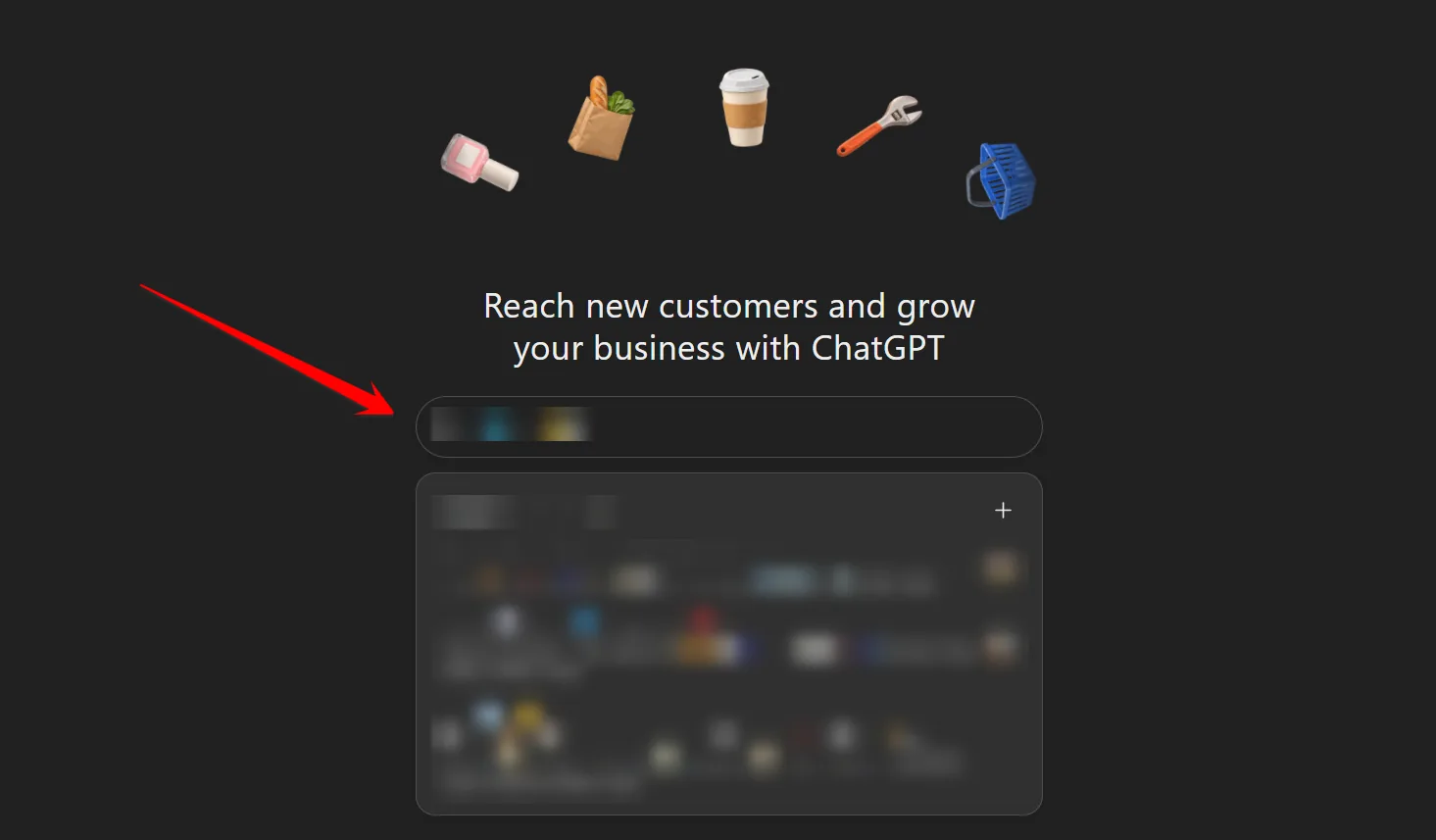
Sign in to ChatGPT, open Business Hub and type your business name into the search box. Results list matching businesses with their addresses, and the top row offers to create a new profile with the name you typed. Search before you create anything: claiming an existing listing is cleaner than building a second profile.
Choose how customers interact with your business
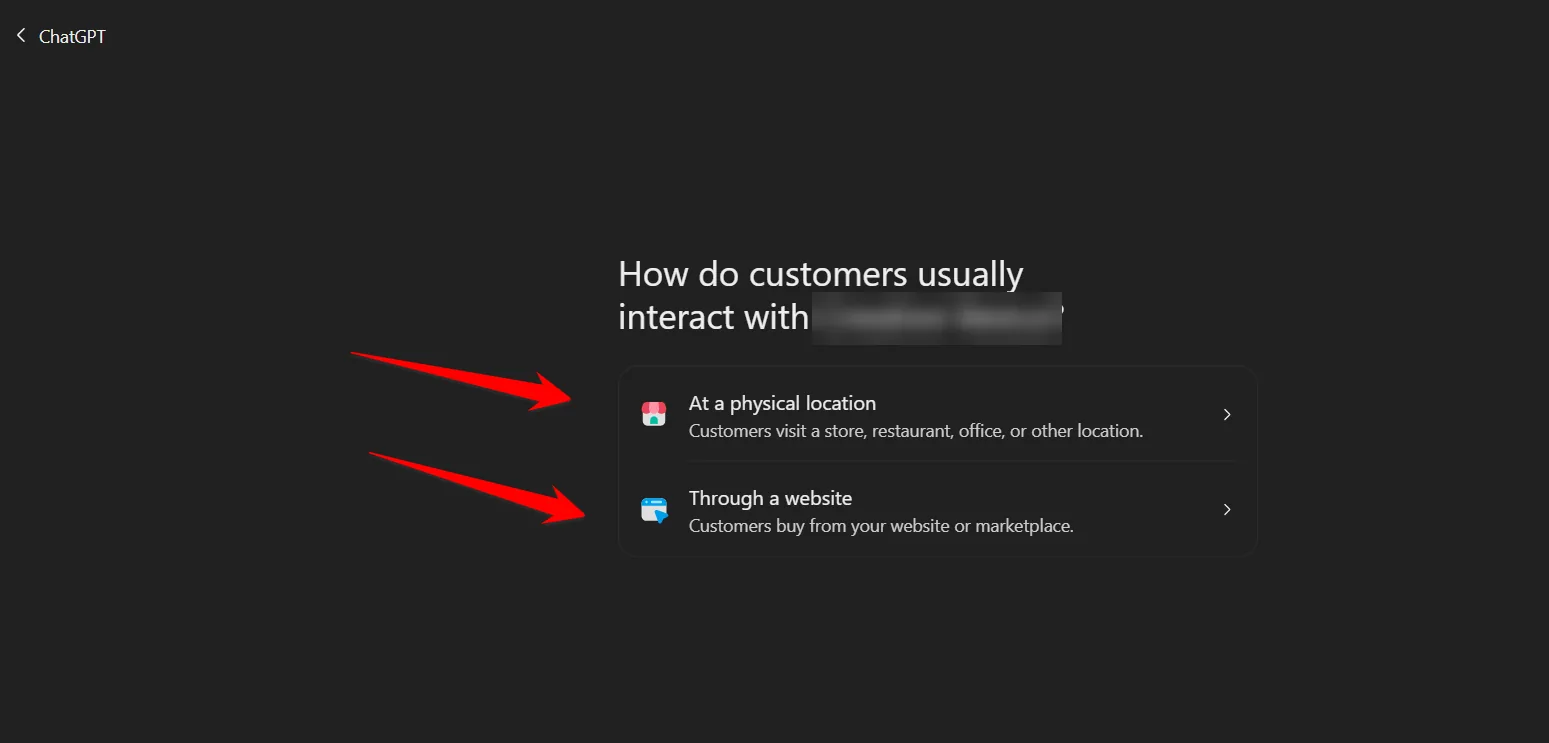
Business Hub asks how customers usually deal with the business. ‘At a physical location’ is for customers who visit a store, restaurant, office or other place. ‘Through a website’ is for customers who buy from your website or a marketplace. We chose ‘Through a website’ for Digital Marketing Cube. Pick the option that matches how most customers reach you.
Add your business website
Enter your website address. A preview card builds on the right of the screen as you go, showing business name, category, website, phone, email, and delivery and return policy lines. Ours showed the category ‘Marketing agency’. Type the exact domain you want customers to reach, because the next step proves you control it.
Verify that you control the business
OpenAI’s help article lists four methods. You may be asked for more than one in the same claim.
| Method | What you do | Watch for |
|---|---|---|
| Business phone | Receive a code by SMS or call and type it in. | The code can be slow. Use ‘Resend code’. |
| Business email | Confirm the email address on the profile. | Check spam and Promotions tabs. |
| DNS TXT record | Add a TXT record at your domain provider, then select ‘Verify domain’. | The record expires, and host and value must match exactly. |
| Shopify | Connect your Shopify store. | For stores on Shopify only. |
Verify with a DNS TXT record
The screen is titled ‘Verify that you control’ followed by your domain. It gives a type (TXT), a name or host, and a value. The host follows the pattern openai-business-profile.yourdomain.com. The value starts with openai-business-profile= and a code unique to your claim. The screen also shows an expiry time (ours expired the same night at 9:52 PM) and warns that changes may take time to appear. Add the record in your domain provider’s DNS panel, wait, then select ‘Verify domain’.
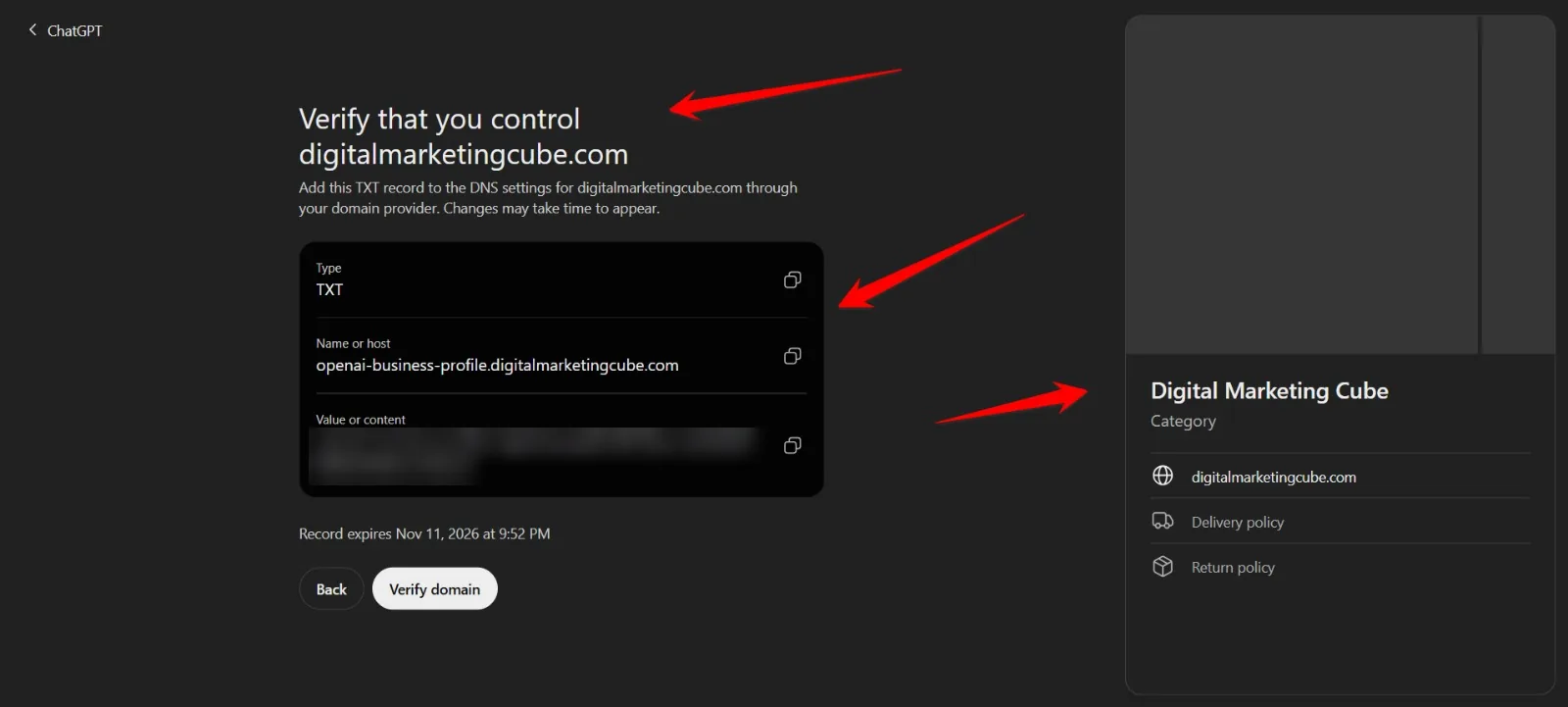
Many DNS panels add your domain to the end of the host automatically. If yours does, enter only the part before your domain, or the domain ends up written twice and the check fails.
Verify with your business phone and email
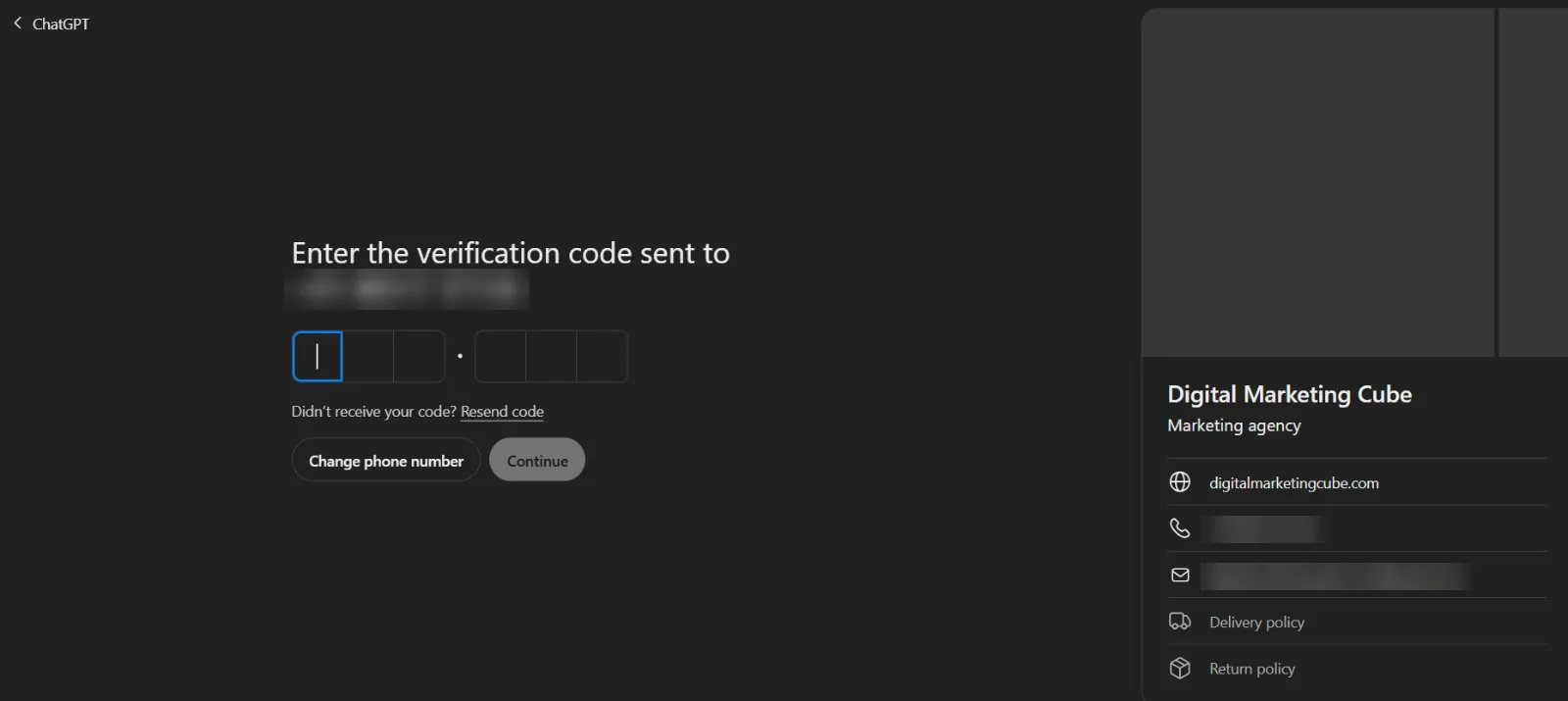
The phone check shows a six-digit box and the message ‘Enter the verification code sent to’ your number, with ‘Resend code’ and ‘Change phone number’ below it. Our code was slow, and we pressed ‘Resend code’ several times before it arrived. The first attempt failing does not mean the check is broken. We confirmed the business email as well but did not screenshot it, so there is no image for it.
Wait for OpenAI to review your claim
After verification, OpenAI reviews the claim. Its help article says the decision comes by email. We received no email, and only learned the outcome by signing in to Business Hub. Check Business Hub once or twice a day while the claim is pending, and do not start a second claim for the same business.
Two approvals.The claim approval gives you access to the business in Business Hub. The identity approval, covered next, gives the blue check and opens up edits, feeds, Insights and agents.
Complete the identity check
This step is OpenAI’s description from its help article. We did not capture a separate identity screen, so it is not our test.
OpenAI uses Persona, an identity service, to check who you are and whether you can act for the business. It asks for a government ID, business registration documents and proof of authority. Names, address and any registration or tax number must match official records.
- You can finish this step later from the Business tab.
- A new profile created through this flow is published automatically once the check is approved.
- If the check fails, try again after fixing any mismatch between your documents and your profile.
Our blue check appeared, which OpenAI ties to the identity approval.
Check that the blue check is on your profile
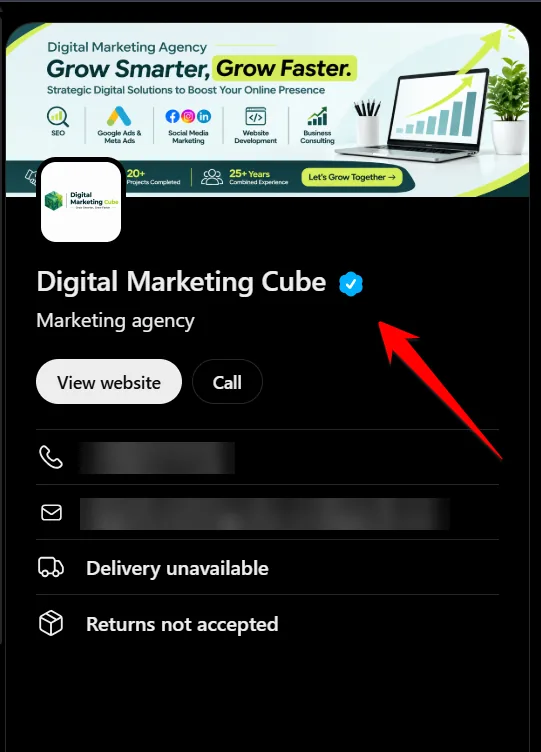
Open Business Hub and look at your profile card. A blue check beside the business name shows the profile has been claimed. Ours sat next to Digital Marketing Cube, with the category ‘Marketing agency’, a ‘View website’ button and a ‘Call’ button. The card also showed ‘Delivery unavailable’ and ‘Returns not accepted’, which suits a service business and can be changed in the editor.
Edit your business details
Select the edit option on your profile. The editor has five tabs: About, Contact, Photos, Delivery and Returns. On the About tab you pick a business category and can add an optional description under ‘More about your business’. Press ‘Save’ and check that the last updated date changes.
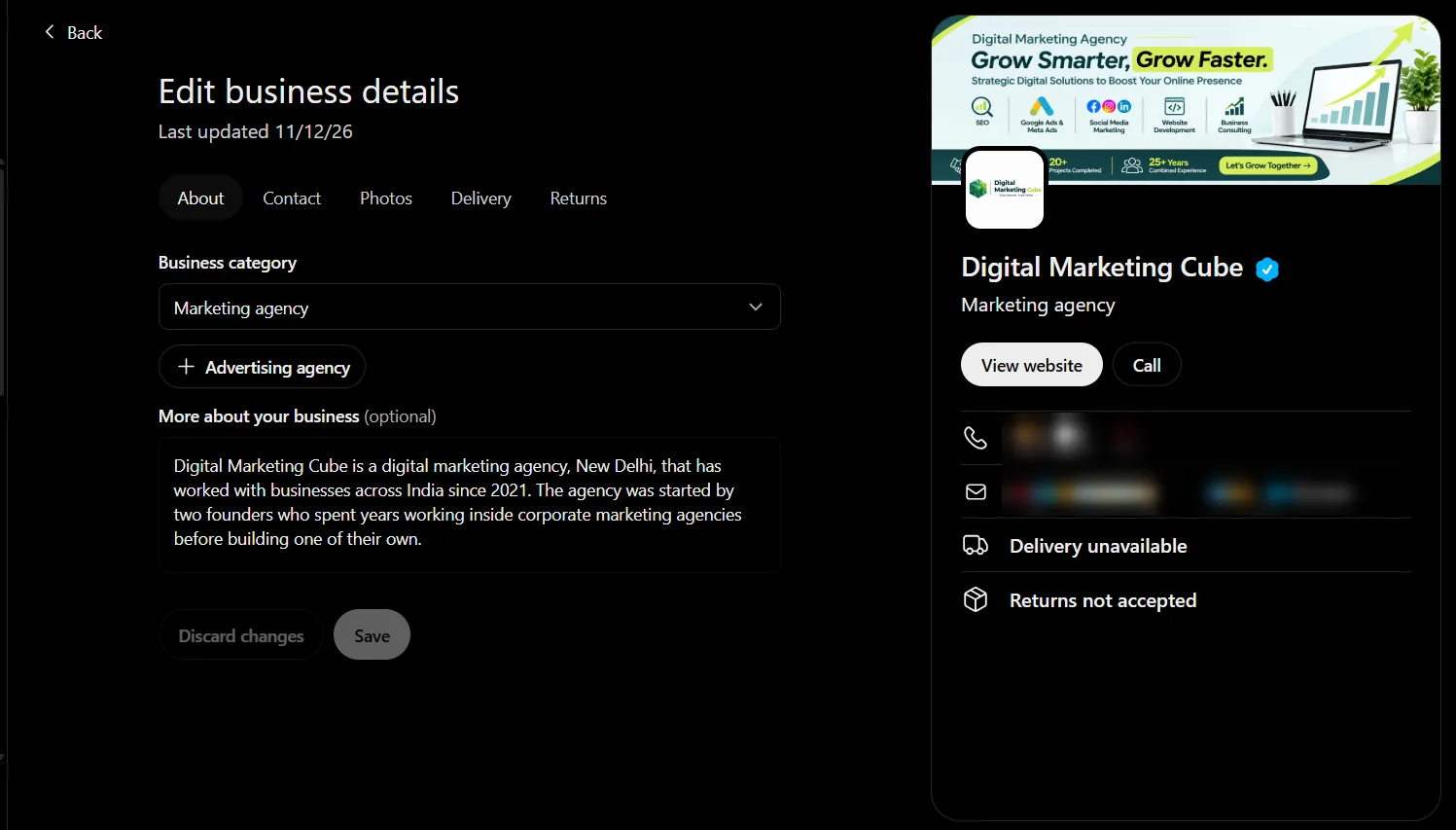
Write the description in plain facts: what you do, where you are based and who you serve. Keep it consistent with your website. Ours says we are a digital marketing agency in New Delhi that has worked with businesses across India since 2021, and makes no claim we cannot support.
How long it took us
We claimed over two sessions, on 11 and 12 November 2026. OpenAI’s pages state no fixed time, so we will not give you one either. Plan for a day or two.
| When | What happened |
|---|---|
| Session one | We searched, chose ‘Through a website’, added our domain and reached the DNS screen. |
| During verification | The phone code was slow, and we pressed ‘Resend code’ several times. |
| Session two | We signed in to Business Hub and found the blue check. No email from OpenAI had arrived. We then opened the editor and updated the profile. |
Stuck on a screen? Fixes for common problems
Most problems come from slow codes, DNS typing errors, names that do not match official records, or a listing someone else already holds. Repeat the step before you assume something is broken, which is how we got past the slow phone code.
| Problem | Likely cause | What to do |
|---|---|---|
| Phone code does not arrive | Delivery delay, or the number cannot receive it | Wait a couple of minutes, then press ‘Resend code’. If it still fails, use ‘Change phone number’ or try email or DNS. |
| DNS record will not verify | Wrong host, partial value, slow DNS spread or an expired record | Copy both values with the copy icons. Check whether your panel adds the domain itself. Wait, then select ‘Verify domain’ again. If the expiry time has passed, generate a new record. |
| Screen says ‘Contact support’ | The listing is locked from the normal claim flow | OpenAI’s help article names support as the route. Go through the Help Center with your proof of ownership ready. |
| Business shows as already claimed | A former agency, employee or another account of yours holds it | Look for a dispute ownership option. Check your other ChatGPT accounts and ask colleagues or past agencies first. |
| Claim stays pending | OpenAI has not finished its review | Wait, and check Business Hub directly because email may not come. Do not file a second claim. |
| Identity check fails | Details do not match official records | Compare names, address and registration numbers with your documents. Correct the profile, then try again. |
| Claim approved but no blue check | The identity step is not finished | Open the Business tab and complete the identity check. |
| Edits do not show in ChatGPT | Changes not saved, or not yet picked up | Confirm you pressed ‘Save’ and the last updated date changed. OpenAI gives no timing, so check again later. |
| Insights look empty | The reporting threshold has not been met | A blank chart does not mean zero. Look again after a few days. |
| Duplicate or wrong profile | A new profile was created when one existed | Only drafts can be deleted, and support cannot unpublish a published profile. Search first, publish last. |
ChatGPT Business Hub vs Google Business Profile
They are separate profiles run by separate companies, and claiming one does not claim or update the other. Business Hub decides what ChatGPT can say about you. Google Business Profile decides how you appear in Google Search and Maps.
ChatGPT Business Hub
Shapes the details ChatGPT may use when someone asks about your business. Needs a website, and its local route is limited to existing US listings for now.
Google Business Profile
Shows your business in Google Search and Maps, where customers also read reviews and find directions.
| Point | ChatGPT Business Hub | Google Business Profile |
|---|---|---|
| Run by | OpenAI | |
| Where customers see it | Answers inside ChatGPT | Google Search and Google Maps |
| Proof of ownership | Phone, email, DNS or Shopify, then an identity check | Google’s own verification steps |
| Customer reviews | None on the profile card we saw | Yes, customers can leave reviews |
| Reporting | Insights: mentions, website clicks and discovery topics over 28 days | Performance reports inside the profile |
| Cost | Free at launch | Free to claim |
| Updating one updates the other | No | No |
Which should you set up first?
- If you serve local customers, fix Google Business Profile first. It carries reviews and map visibility, and today it is your main local listing in India.
- Copy the same name, phone number, category and description into Business Hub.
- Keep your website pages saying the same thing as both profiles.
- When your phone number, address or services change, update both.
What to do after you claim
Make your profile match your website, then check that ChatGPT can read your pages.
- Compare your profile with your website. Name, phone, category and description should say the same thing, and every tab should be filled.
- Check that your site lets OpenAI’s crawler in. OpenAI’s documentation names OAI-SearchBot as the crawler behind ChatGPT search. We have not seen OpenAI say Business Hub depends on it, so treat this as a sensible check, not a rule. If you have blocked AI bots, our guide on blocking AI crawlers with robots.txt shows what each rule does.
- Keep your pages clear and factual. For an online business, mentions count only when ChatGPT references your website, so your own pages carry the weight. We have also explained what an llms.txt file does and does not do.
- Check Insights after a few days, and review the profile once a month.
Pages on your own site are the part you control most. Our SEO services cover the technical and content work that makes those pages clear to Google and AI answer tools. We do not promise a placement in ChatGPT, because nobody can.
Product feeds and Business Agents
A service business can skip product feeds. We opened the product screens, saw three upload options (a Parquet or text file, a hosted URL, or SFTP) and stopped, because we sell services. If you do continue, the merchant terms are legally binding on behalf of your organisation, so have someone with authority read them first.
Business Agents are separate. OpenAI says they are currently for eligible ecommerce and online service businesses in the US, with access expanding over time. Eligible Shopify merchants can connect a store and create an agent in three steps. If you are in India, expect to wait.
Reference: OpenAI, Businesses in ChatGPT: Claim your business. OpenAI details in this guide were checked against that page and Business Hub’s help article.
Not sure about any step? Talk to us
Tell us where you are stuck, or ask for a review of your profile, website and search presence. We start with a discovery call and an honest review of what is running today, then say plainly what is worth doing first. Our digital marketing work treats ChatGPT as one channel next to search, maps and ads.

 Parshant Hadala