
If Claude Desktop is taking up 12GB or more of space on your Windows laptop, you haven’t done anything wrong, and you’re not imagining it. It’s a known, widely reported pattern tied to one specific background feature — not a corrupted install, not a virus, and not something unique to your machine. We ran into the same thing ourselves, dug through the actual bug reports, and tested every fix below on a real Windows install before writing a word of this.
Claude Desktop taking up too much space on your Windows laptop almost always comes down to one thing: a background sandbox called Cowork that downloads a virtual Linux machine, sometimes past 10GB, to run tasks safely on your behalf. Clear it from Help → Troubleshooting → Free Up Cowork Disk Space (or Delete Cowork VM Bundle) and it’s gone in under a minute, with nothing lost. If it rebuilds itself every time you reopen the app, the Windows-specific fixes further down stop it from coming back at all.
Will I Lose Anything If I Clean This Up?
Short answer: no, for almost everything on this page. Your actual Claude conversations live in your Anthropic account in the cloud — the same account behind claude.ai and the mobile app. The files sitting on your laptop are mostly a local cache and a sandbox environment, not your only copy of anything important.
There is one real exception. If you use MCP connectors — things like Google Drive, Gmail, or a custom tool hooked up to Claude — that setup lives only in a local file called claude_desktop_config.json. It doesn’t sync to the cloud. Before doing any cleanup below, it’s worth copying that one file somewhere safe, just in case.
The one action on this entire page that genuinely deletes something permanent is “Delete Cowork VM Sessions and Restart” inside the app’s Troubleshooting menu. That wipes local Cowork session history. We’ve flagged it clearly everywhere it comes up — you’ll see the menu, you just don’t need to click that specific option.
| Fix | Space recovered | Data risk | Reversible? |
|---|---|---|---|
| Free Up Cowork Disk Space / Clear Cache (in-app) | A few hundred MB up to 10GB+ | None | Nothing to undo |
| Delete Cowork VM Bundle and Restart (in-app) | 8–15GB, the big one | None to chat history | Yes, rebuilds automatically next time you use Cowork |
| Stop the Cowork VM service for now (PowerShell) | Frees background RAM until next relaunch | None | Yes, restarts itself next time you open Cowork |
| Registry policy fix (secureVmFeaturesEnabled) | Same goal, works on some versions only | None | Yes, flip the value back |
| Rename cowork-svc.exe (the permanent fix) | Stops the service from ever starting again | None | Yes, rename it back — but reapplies after every app update |
| Rename the manual VM bundle folder | Same as deleting it, works with no menu | None | Yes, rename it back |
| Remove old installer leftovers | Often several GB on older installs | Low — back up config.json first | Not reversible once deleted |
| Disable Virtual Machine Platform (nuclear option) | Everything Cowork-related | None to Claude data, but breaks WSL2/Docker | Yes, turn the Windows feature back on |
| Use claude.ai or Claude Code instead | Avoids the problem entirely | None | N/A |
Where Does All That Space Actually Go?
There are two separate causes here, and most articles on this topic only cover the first one.
1. The Cowork VM Bundle (the big one)
Cowork is Claude Desktop’s agentic mode — it lets Claude read files, run code, and take actions on your machine safely. To do that without putting the rest of your system at risk, Anthropic runs Cowork sessions inside an isolated virtual machine, using Hyper-V on Windows. That VM is effectively a small Linux install sitting on your hard disk, and it’s the single biggest thing bloating the app.
We checked this on our own machine. The folder responsible — vm_bundles\claudevm.bundle — came out to exactly this:
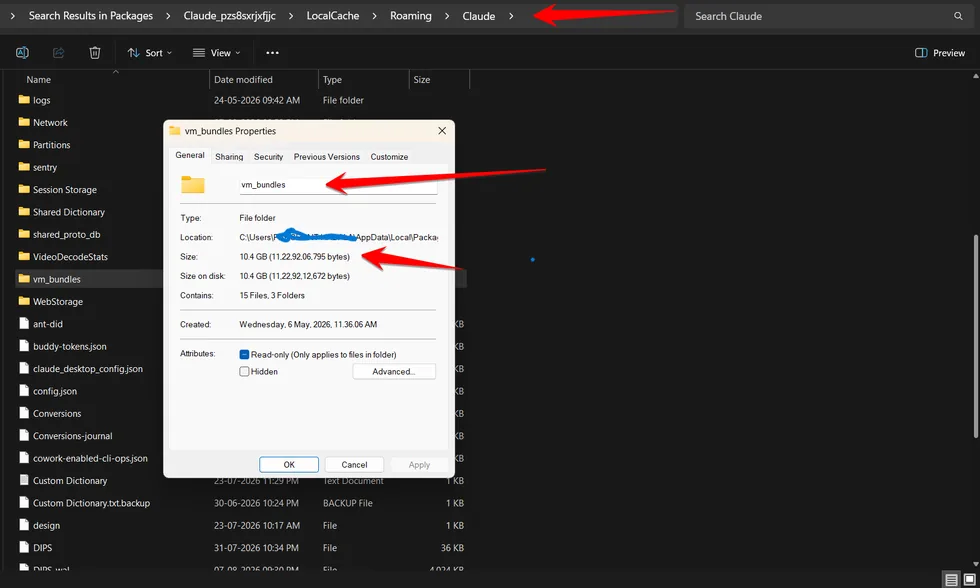
That single folder accounted for the overwhelming majority of Claude Desktop’s footprint on our test machine. Reports elsewhere put it anywhere from 8GB to 15GB, depending on how long Cowork has been in use and how many times it’s rebuilt itself.
Open File Explorer, paste %LocalAppData%\Packages\ into the address bar and press Enter, open the folder starting with Claude_, then go to LocalCache\Roaming\Claude\. Right-click vm_bundles → Properties to see its actual size on your PC. If that folder isn’t there, search your whole disk for vm_bundles instead — the exact path can vary slightly between installs.
2. It’s Not Just Cowork: The Conversation Cache Problem
The second cause is smaller in raw gigabytes but affects a lot more people, including anyone who’s never touched Cowork. Claude Desktop caches your entire conversation list — full message text, tool outputs, even attached images — into a single local database file. On an account with a large chat history, that file can reach 45MB or more, and it gets rewritten from scratch on every single update, even a routine background sync.
The practical effect: some users report the app sitting at 20–25% CPU and several megabytes per second of disk writes while completely idle — one detailed report measured 67.9GB of writes over a single 4-hour idle session, simply from how often that cache file rewrites itself. It’s a smaller number in gigabytes than the VM bundle, but it explains a different, equally annoying symptom — the app never quite leaving your disk alone. The full technical report is on Anthropic’s GitHub, if you want to see it firsthand or follow it for updates.
| Folder | What it is | Typical size |
|---|---|---|
vm_bundles | The Cowork sandbox VM image | 8–15GB |
Cache / Code Cache | Standard Electron/Chromium browser cache | Few hundred MB – 2GB |
IndexedDB | Conversation history cache (see above) | Tens of MB, rewritten constantly |
claude-code | Claude Code CLI binary and per-version runtimes | 200MB–1GB, grows with each update if not cleaned |
local-agent-mode-sessions | Cowork session history | Varies, can accumulate over time |
The 60-Second Fix — Do This First
Claude Desktop has a built-in fix for exactly this, and it’s genuinely the easiest, safest option. It’s just not in the obvious place — there’s no traditional Windows menu bar. Look for the ☰ icon in the top-left corner of the app window, then go to Help → Troubleshooting.
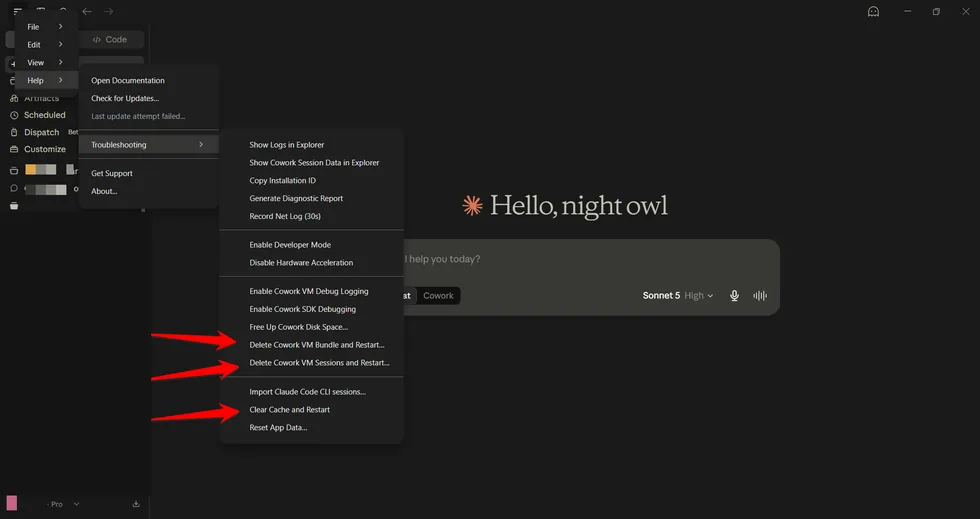
Inside that menu, three options are worth using, in this order:
Two other options in that same menu look similar but do something very different. Avoid these unless their exact effect is what you’re after:
Delete Cowork VM Sessions and Restart
This wipes your local Cowork session history permanently. Not needed for freeing up space — skip it.
Reset App Data
A broader reset with effects on local settings that aren’t fully documented. Treat with the same caution as the option above.
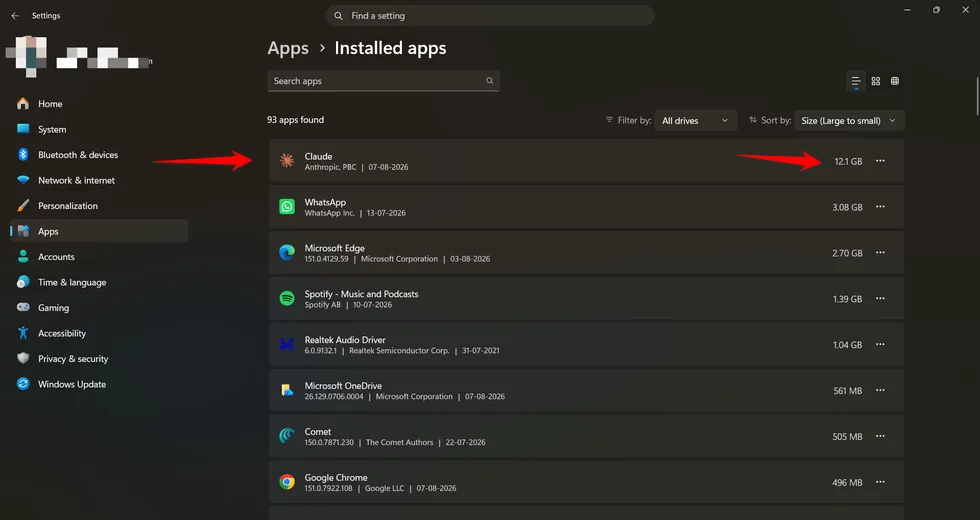
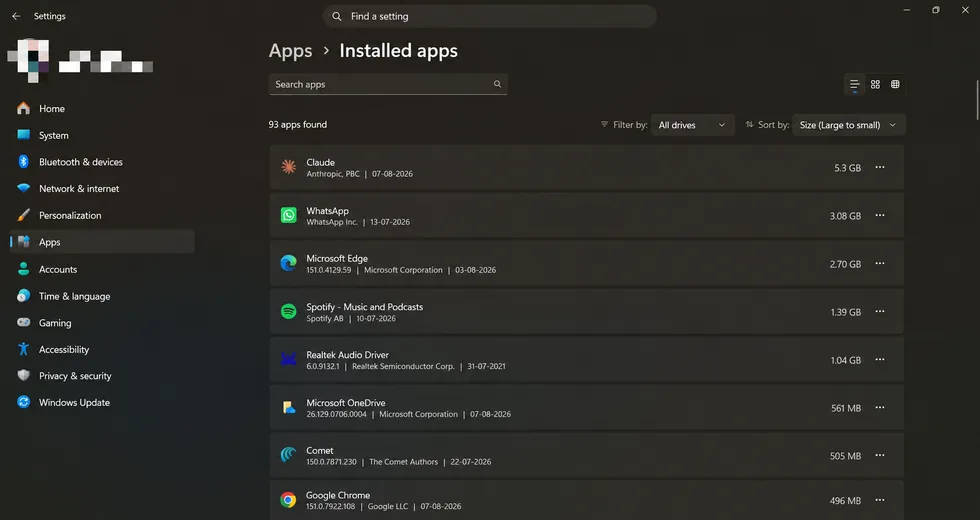
Here’s what this actually looked like on our test machine, before and after using the menu above:
Still Coming Back? The Deeper Windows Fix
The 60-second fix works, but the VM bundle can rebuild itself the next time Cowork runs — and on some Windows installs, the underlying service starts automatically on every launch, whether or not you ever open Cowork at all. If that’s happening to you, here’s how to stop it for good.
Step 1: Check which virtualisation stack you actually have
Windows Home and Windows Pro/Enterprise handle this differently, and it genuinely changes which fix applies to you. Open an administrator PowerShell window — right-click the Start button, choose Terminal (Admin) or Windows PowerShell (Admin), then confirm the prompt — and run:
Get-Service vmmsIf it returns a service, you’re running full Hyper-V (Pro, Enterprise, or Education) and the fixes below apply cleanly. If it says the service can’t be found, you’re on Windows Home — Cowork’s relationship with Home is genuinely inconsistent (works for some, fails for others), so treat the fixes below as “worth trying” rather than guaranteed.
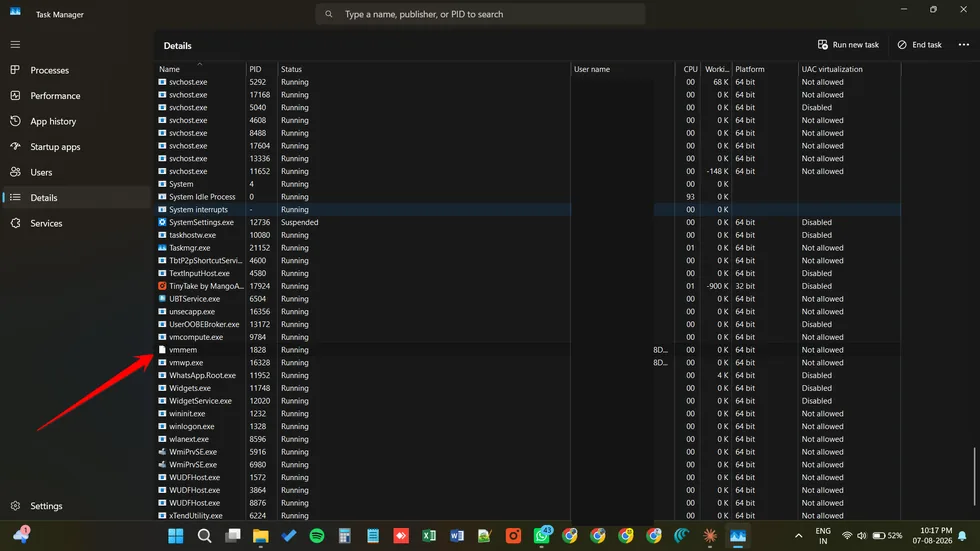
Step 2: Stop the service (works — but read this before trying to make it permanent)
Still in an administrator PowerShell window:
Get-Service *cowork*
Stop-Service CoworkVMService -Force
Replace CoworkVMService with whatever name the first command actually shows on your machine. This stops the service for the current session without touching Claude itself.
The natural next step is Set-Service CoworkVMService -StartupType Disabled, to stop it coming back permanently. On most current installs this returns “Access is denied,” even in an elevated Administrator window — this isn’t something you’re doing wrong. Claude Desktop ships CoworkVMService inside its MSIX package with a protected manifest, and Windows blocks startup-type changes to it at the permissions level. It’s a known, still-open limitation, tracked in Anthropic’s GitHub issue tracker. Skip straight to the exe-rename method below — it’s the one method that reliably works around this.
Step 3: The registry method (works, but inconsistently across versions)
reg add "HKCU\SOFTWARE\Policies\Claude" /v secureVmFeaturesEnabled /t REG_DWORD /d 0 /fThis registry setting has been documented stopping Cowork’s VM in one Claude Desktop version, then being silently ignored again after the next update, on the same machine. Treat it as worth trying, not a guaranteed fix, and check that Cowork actually stays off after applying it.
The manual fallback (no menu, no PowerShell needed)
This doesn’t stop the service — it just clears the existing VM bundle, which is enough if you only need the space back once:
- Fully quit Claude Desktop from the Windows system tray (right-click the icon near the clock → Quit — closing the window alone isn’t enough).
- Open File Explorer, paste this into the address bar, and press Enter:
%LocalAppData%\Packages\ - Open the folder starting with
Claude_, then go toLocalCache\Roaming\Claude\. If you don’t see a folder starting withClaude_, use File Explorer’s search box to search forvm_bundlesinstead. - Rename the
vm_bundlesfolder tovm_bundles_old. - Reopen Claude Desktop normally.
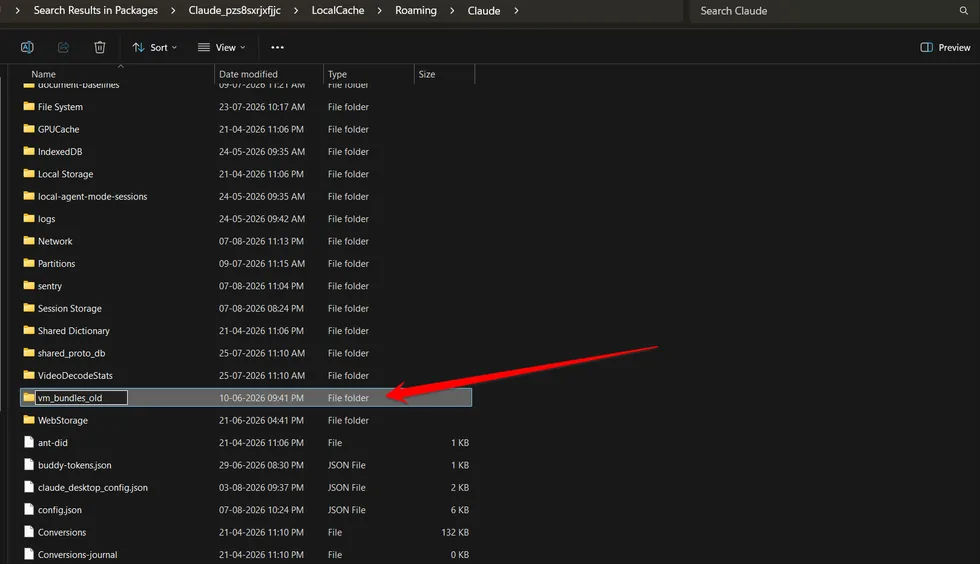
The method that actually works permanently
Given Step 2’s Access Denied wall above, this is the fix worth trusting if you want the service gone for good, not just stopped for one session — confirmed effective in a detailed Windows Home bug report where every registry and config-file approach was tried and failed first.
Find cowork-svc.exe inside the app’s install folder under %LocalAppData%\AnthropicClaude\, and rename it to cowork-svc.exe.disabled.
Auto-updates restore the original file, so you’ll need to redo this each time Claude Desktop updates itself. It’s a genuine fix, just not a permanent one.
The nuclear option
Disabling Virtual Machine Platform entirely (via optionalfeatures.exe) stops Cowork’s VM from ever starting again. Only do this if you’re certain you don’t need it for anything else — it also disables WSL2, Docker Desktop, and Windows Sandbox if you use any of those.
Old Installer Leftovers, If You’ve Had Claude Desktop a While
Claude Desktop switched from its original Squirrel-based Windows installer to a new MSIX package around February 2026, needed to support Cowork. If you’ve had the app since before that, some old installer files may never have been cleaned up.
Worth checking, if you fall into that category:
- Old remnants at
%LocalAppData%\claude-desktopand%LocalAppData%\AnthropicClaudefrom the original installer - Multiple version-numbered folders sitting side by side inside
claude-code\— Claude Desktop doesn’t always clean up old versions after an update
If you installed after February 2026, you likely won’t see either of these — safe to skip this section entirely.
Don’t Actually Need Cowork? The Zero-Bloat Option
If you mainly use Claude for conversations and don’t need it reading local files or running code on your machine, the simplest fix is sidestepping the problem entirely. claude.ai in a browser uses the same account, the same conversation history, and leaves zero local footprint. For developers who want agentic features without the VM overhead, Claude Code (the command-line tool) is worth a look too — it doesn’t bundle Cowork’s sandbox at all.
How Much Space Should Claude Desktop Actually Use?
Useful to know before you assume something’s broken — some of this footprint is expected, not a bug.
| Usage tier | RAM | Disk space |
|---|---|---|
| Chat only, no Cowork | 8GB | ~1GB |
| Cowork active | 16GB+ | 5GB minimum |
| Cowork + Claude Code + connectors (power user) | 32GB | 50GB+ recommended |
Anthropic’s own installation requirements for other platforms mention a workspace image needing around 25GB of free disk space on its own — a useful sign that this VM-based storage cost is an intentional architectural choice, not an accident specific to Windows.
The Result
On our own test machine, this brought Claude Desktop’s footprint down from 12.1GB to 5.3GB — recovered in under ten minutes, with every conversation still exactly where we left it. As of writing, Anthropic hasn’t shipped a permanent fix for the underlying VM bloat, so if it creeps back up over time, the deeper Windows fixes above are worth revisiting rather than a one-time clean-up.

 Parshant Hadala